This chapter guides students through installing WordPress on their self-hosted domain and configuring essential settings. Students will navigate the WordPress dashboard, understand the distinction between WordPress.org and WordPress.com, and activate the Twenty Twenty-Five theme. By the end of this chapter, students will have a functional WordPress site ready for content creation and template customization, with a clear understanding of how core settings affect site structure and user experience.
Learning Objectives
After completing this chapter, learnings will be able to:
- Describe WordPress
- Differentiate WordPress.com from WordPress.org
- Install WordPress
- Login to their WordPress admin panel
- Update core site settings
What is WordPress
WordPress is a free, open‑source platform for building websites and blogs. It gives you a visual editor, themes for design, and optional plugins for added features, so you can create pages, posts, menus, and templates without writing code. Modern WordPress uses blocks and Full Site Editing (FSE), which means you design both your content and your site’s layout with reusable components.
In this course you’ll use the self‑hosted (WordPress.org) version with the Twenty Twenty‑Five theme and minimal plugins to learn core skills that transfer to real projects.
WordPress is a Content Management System (CMS), which is software that lets you create, organise, and publish digital content through a web interface, separating your content (text, images, media) from the design (themes, templates, styles). A CMS typically includes user roles, media management, and versioning, so teams can collaborate and update sites efficiently. WordPress is a CMS: you’ll write posts and pages, manage menus and media, and adjust site design via themes and templates—no programming required.
WordPress.com versus WordPress.org
WordPress.com is an all‑in‑one, hosted service where the platform takes care of the technical bits (servers, security, backups), but you trade some flexibility for convenience—on lower‑tier plans you’ll face limits around themes, plugins, and customisation. WordPress.org, by contrast, is the free, open‑source software you install on your own web host; it gives you full control over your site, the ability to use any compatible theme or plugin, access to your files and database, and the freedom to customise templates with Full Site Editing—but you’re responsible for setup, updates, backups, and security.
This book and course focus on WordPress.org (self‑hosted/self‑supported WordPress) so you gain transferable skills for real projects: choosing a host, connecting a domain with DNS, configuring WordPress, working with Twenty Twenty‑Five, and building pages, posts, and templates with minimal plugins.
WordPress.org Setup
Now that you have a basic understanding of what is required, it is time to setup your WordPress website. At this point, we are only installing WordPress, we are not changing anything yet.
The process for setting up WordPress is:
- Purchase your domain name.
- Purchase your web hosting.
- If you purchased your domain name and web hosting separately, configure your domain to point to your hosting (i.e, setup the DNS).
- Using your hosting platform, CPANEL, install the WordPress application.
Tip
Your web hosting provider should have tutorials available to describe how to setup your DNS listing, and how to install WordPress. These procedures will vary depending on where you purchase your domain name and hosting.
Logging into the dashboard
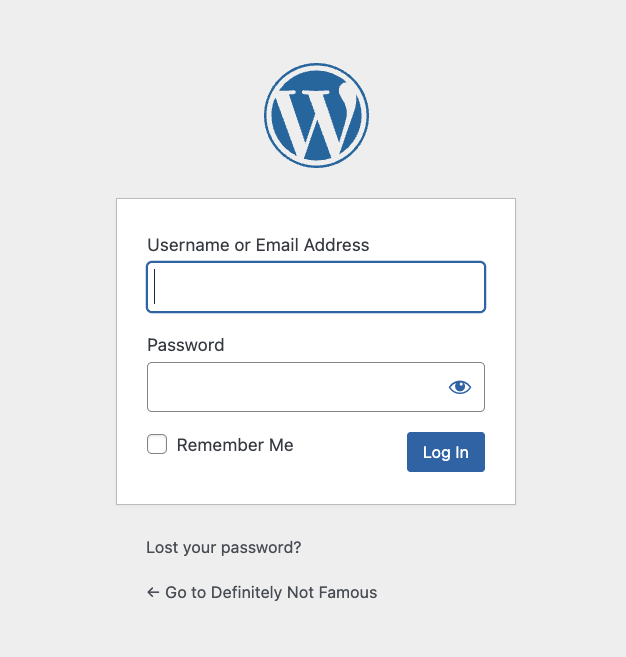
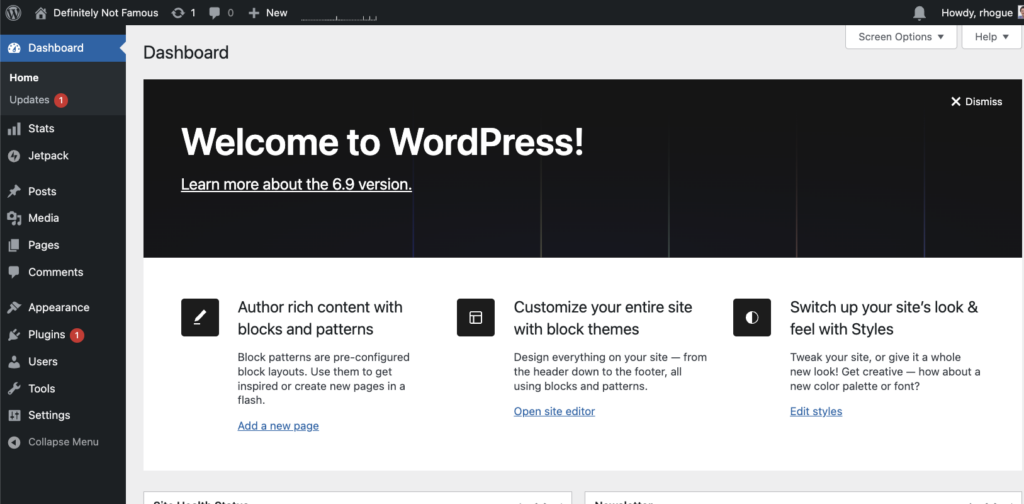
The most common way to login to a WordPress website as administrator is to use the wp-admin panel. This is accessed by adding /wp-admin after your website domain name. For example: https://wordpress.rebeccahogue.ca/wp-admin
Try it
Login to your admin panel:
- Check your email for your admin username and password.
- Navigate to: https://<your website domain>/wp-admin.
- Login.
Core WordPress Site Settings
The table below outlines the different site related settings. You can set most of these settings now. The setting for Your Homepage Displays should only be set after you create your homepage.
The website versus blogging settings will make more sense after you complete chapter 3.
| Where to find it | Setting | What it means (plain English) | Recommended for a basic site |
|---|---|---|---|
| Settings > General | Site Title | The name of your website shown in browser tabs and search results. | Your brand or site name (e.g., “Acme Consulting”). |
| Settings > General | Tagline | A short description of your site; some themes and search engines may show it. | A brief, clear description, or leave blank if not needed. |
| Settings > General | Administration Email Address | Where WordPress sends important alerts (passwords, updates, comments). | A monitored email you check often. |
| Settings > General | Timezone | Sets local time for your site (affects post scheduling and timestamps). | Your local time or your audience’s main timezone. |
| Settings > Reading | Your homepage displays | Decides what visitors see first on your homepage. | “A static page” for a typical website (pick a Home page and a Posts page). Choose “Your latest posts” only if it’s a blog-first site. |
| Settings > Reading | Search engine visibility | Tells search engines not to list your site while you’re building it. | Leave unchecked for live sites. You may temporarily check it while building, then uncheck before launch. |
| Settings > Permalinks | Permalink structure | How your page/post web addresses look. | “Post name” (clean and easy to read). |
| Settings > Discussion | Allow people to submit comments on new posts | Turns comments on or off across new posts. | Off for most basic business sites; On if you plan to blog with comments. |
| Settings > Discussion | Comment must be manually approved (if comments are on) | You review comments before they appear publicly. | On (helps block spam and keep quality high). |
| Settings > Discussion | Comment author must fill out name and email (if comments are on) | Requires basic info from commenters to reduce spam. | On. |
| Settings > Writing | Default Post Category | The category used if you forget to choose one when posting. | Create “Blog” or “News” and set it as the default. |
Plugins
A WordPress plugin is an add‑on package (PHP/JS/CSS) that you install to extend WordPress beyond core features. Plugins can do almost anything—add contact forms, e‑commerce, SEO tools, caching, analytics, custom blocks, or integrations—by hooking into WordPress’s APIs and events. In short: core provides the platform, plugins provide optional features.
Why fewer plugins usually means a better site
- Performance: Every plugin can add code to run on each page load (PHP functions, database queries, scripts/styles). More plugins can mean more work per request, which can slow the site down.
- Stability & compatibility: Each plugin increases the chance of conflicts—with other plugins, your theme, or future WordPress updates.
- Security & maintenance: More plugins = more code surfaces to patch, monitor, and update. A single vulnerable or abandoned plugin can put the whole site at risk.
The goal isn’t zero plugins—it’s “the minimum, well‑chosen set” that covers your needs without bloat.