This chapter clarifies the conceptual and functional distinction between Pages and Posts in WordPress—a foundational concept that often confuses new users. Learners will create both Pages and Posts, explore categories and tags, and understand when to use each content type.
After completing this chapter, learnings will be able to:
- Explain the conceptual difference between Pages and Posts in WordPress
- Describe when to use Pages vs. Posts for different content types
- Create and publish a basic Page
- Create and publish a basic Post
- Describe the role of categories and tags
In WordPress, Pages are static, evergreen content—like About, Contact, and Services—that don’t change often; they can be arranged in a hierarchy (parent and child pages) and aren’t organized by date or category. Pages typically show up in the website’s navigation menu.
Posts are chronological, time-sensitive entries—such as blog articles, announcements, and news—organized by date, category, and tags; they can be archived and typically appear in your blog feed.
Think of Pages as a book’s chapters and Posts as a newspaper’s daily articles.
Steps for adding a page:
- Go to Add New Page
- Pages can be added from either:
- The top admin panel by clicking New > Page
- The dashboard by clicking Pages > Add New Page
- Pages can be added from either:
- Add a Page Title
- Add page content
- Customize blocks
- Adjust page settings
- Template specifies which template this page uses.
- Permalink describes the URL for the page after it is published
- Visibility allows for public or private pages
- Publish date outlines when you to publish the page
- Preview the page
- Publish
Categories and tags in WordPress serve different purposes for organizing content. Categories are broad groupings that define the main topics of your site. They help visitors understand the overall structure of your content and make navigation easier. For example, if you run a food blog, categories might include “Breakfast,” “Lunch,” and “Dinner.” Categories can also have subcategories, such as “Dinner → Desserts → Cakes,” which adds another layer of organization. Every post must have at least one category, so think of them as the big buckets that hold your content.
Tags, on the other hand, are more specific labels that describe the details of a post. They act like keywords and help users find related content across different categories. For instance, a post about chocolate cake might have tags like “Chocolate,” “Baking,” and “Party Recipes.” Tags are optional and flexible—you can add as many as you need to highlight unique aspects of a post. Use categories to define the main topic and tags to capture the finer details. Together, they make your site easier to navigate and improve search engine optimization (SEO).
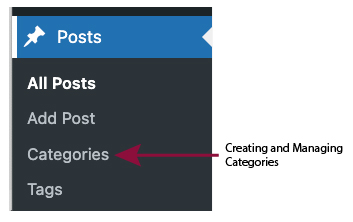
You can create categories and tags when you create a post. In addition, you can edit categories and tags from the Posts > Categories and Posts > Tags menu on the dashboard.
Tip
Once you have created a few categories, you can change the default from uncategorized to one of your new categories. You do this from the Settings > Writing menu.
Steps for adding a post:
- Go to Add New Post
- Posts can be added from either:
- The top admin panel by clicking New > Post
- The dashboard by clicking Posts > Add New Post
- Posts can be added from either:
- Add a Title
- Add Content
- Customize blocks
- Adjust post settings
- Categories and Tags
- Featured image
- Excerpt
- Visibility
- Publish date
- Preview your post
- Save or Publish you post