This chapter introduces Full Site Editing (FSE) as a paradigm shift—enabling non-developers to design entire websites, not just individual pages. Learners will understand template hierarchy, customize site-wide header and footer, and create custom templates for specialized page layouts. Using Twenty Twenty-Five’s block-based architecture, students will see how templates provide consistency across the site while allowing flexibility for unique content types, mirroring instructional design principles of standardized structure with variable content.
Full Site Editor Overview
Full Site Editing (FSE) represents a paradigm shift in WordPress design, empowering non-developers to create and customize entire websites—not just individual pages—using a block-based approach. With FSE, every part of your site, from headers and footers to templates and content areas, is editable through the intuitive block editor.
Full Site Editing transforms WordPress from a page-focused editor into a complete site design system. Instead of relying on PHP templates and theme files, FSE uses blocks and templates that can be visually edited in the Site Editor. This means you can control global elements like headers and footers, adjust layouts, and apply consistent styles across your entire site—all within a unified interface. By mastering FSE, students gain the ability to design cohesive websites that balance structure and creativity.
To access the full site editor:
- Log in to your WordPress dashboard.
- In the left-hand menu, go to: Appearance → Editor
- (In block themes like Twenty Twenty-Five, this option is labeled “Editor” instead of “Theme Editor.”) This opens the Site Editor, which is the interface for Full Site Editing.
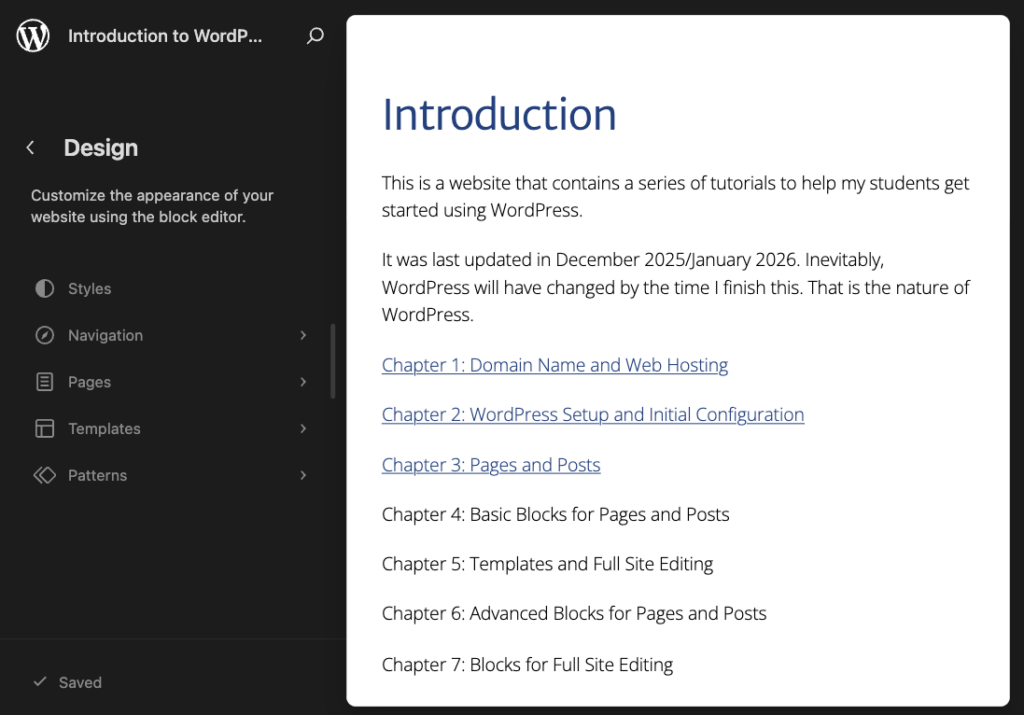
Key Elements of the Full Site Editor
| Element | Description | Purpose |
|---|---|---|
| Canvas Area | The main workspace where templates and template parts are displayed and edited. | Allows you to visually edit headers, footers, and content layouts using blocks. |
| Top Toolbar | The bar at the top of the editor with navigation and editing tools. | Provides access to undo/redo, list view, preview, and save options. |
| Sidebar Panel | The right-hand panel showing template or block settings | Customize styles, colors, typography, and advanced options for blocks or templates. |
| Global Styles Panel | Accessed via the Styles icon (half-filled circle) in the top-right corner. | Controls site-wide design settings like typography, colors, and layout spacing. |
| Templates | Templates Predefined layouts for different content types (e.g., Single Post, Page, Archive). | Ensure consistent structure across your site while allowing customization. |
| Patterns | Patterns in WordPress are predefined block layouts that combine multiple blocks into a ready-made design. They allow you to quickly insert complex layouts—such as hero sections, call-to-action banners, or multi-column designs—without building them from scratch. Patterns can include text, images, buttons, and other blocks arranged in a visually appealing way. | The purpose of Patterns is to speed up the design process and maintain consistency across your site. They help users create professional-looking layouts with minimal effort, reduce repetitive work, and ensure that design elements follow best practices. Patterns are especially useful for beginners or anyone who wants to save time while achieving polished results. |